1. Export an EDL marker file from DaVinci Resolve
- Select the sequence in your media tab.
- Make the right click on the sequence timeline in your media tab and it will open the popup.
- Navigate to: "Timeline > Export > Timeline Markers to EDL"
2. Use the "마커 변환기" to convert the EDL marker file into a Final Cut 7 XML marker file
Open the free 마커 변환기, select "DaVinci Resolve > Sequence (.edl)" and set "convert" to "Adobe Premiere Pro > Sequence (.xml)". Generate and download the file. 파일 변환에 문제가 있으면 무료 지원팀에 문의할 수 있습니다.
3. Import the Final Cut 7 XML marker file into Adobe Premiere Pro
To import timeline markers, go to "File -> Import" and select the XML file.
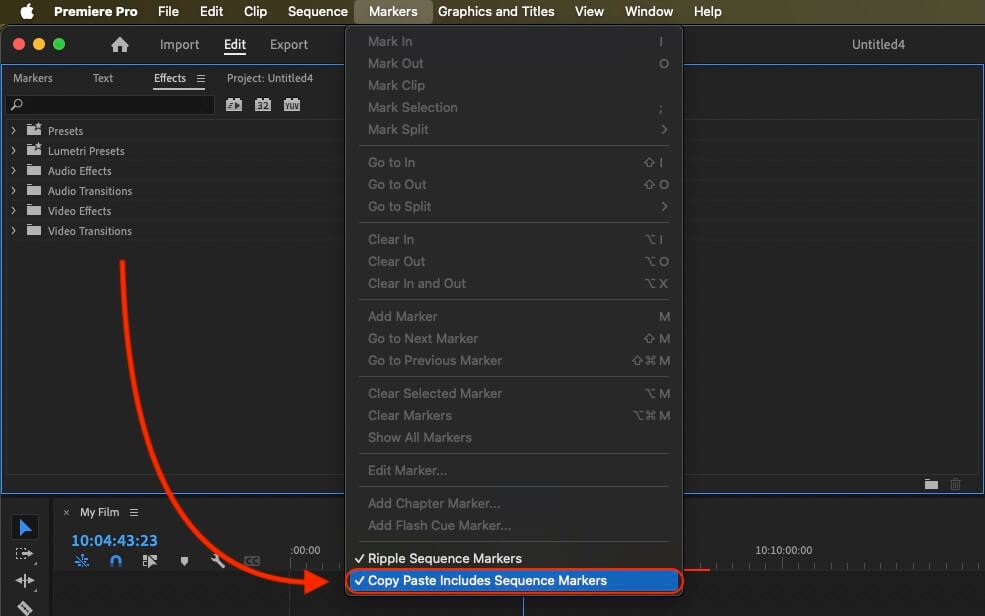
If you want to copy these markers into the existing sequence, use the adjustment layer or any other video as placeholder. Then copy the clip and switch to your existing sequence. Move the cursor to the location, where the adjusmtent layer or first marker appeared in the other sequence. Then past it. It will only copy the timeline markers if under setting (in the Markers menu) the option "Copy Paste Includes Sequence Markers" is active.
🚀 완료
이제 끝났습니다! 이 튜토리얼이 유용했다면 공유하여 저희를 응원해 주세요. 워크플로 개선에 대한 제안이 있다면 알려 주세요!