1. Export an EDL marker file from DaVinci Resolve
- Select the sequence in your media tab.
- Make the right click on the sequence timeline in your media tab and it will open the popup.
- Navigate to: "Timeline > Export > Timeline Markers to EDL"
2. Use the "마커 변환기" to convert the EDL marker file into a CSV file
Open the free 마커 변환기, select "DaVinci Resolve > Sequence (.edl)" and set "convert" to "CSV for Google Sheets". Generate and download the file. 파일 변환에 문제가 있으면 무료 지원팀에 문의할 수 있습니다.
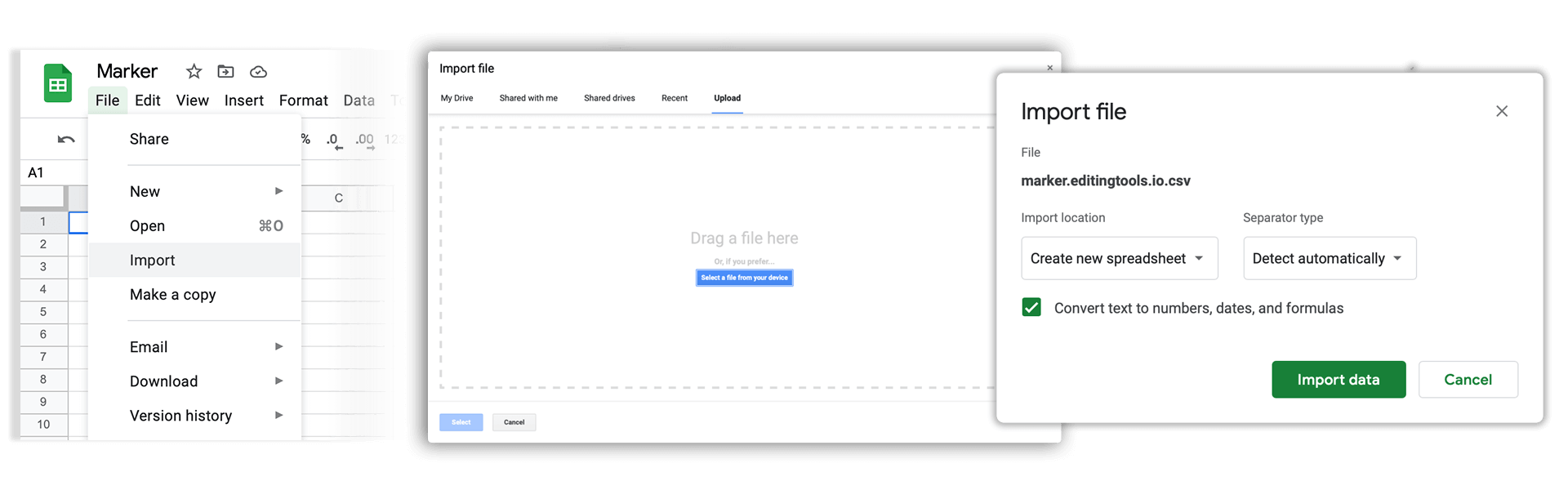
3. Import the CSV file into Google Sheets
Open Google Sheets and go to "File -> Import". Upload the generated CSV file and press "Import Data" to generate the Sheet with all markers.
🚀 완료
이제 끝났습니다! 이 튜토리얼이 유용했다면 공유하여 저희를 응원해 주세요. 워크플로 개선에 대한 제안이 있다면 알려 주세요!