1. Export a CSV marker file from Pix
Open the comments panel on the right side in Pix. Press the three dots and select "Export". Now you can then download the CSV file from Pix.

The timecode in Pix starts with 00:00:00:00 for each clip, so you may need to use the offset function on EditingTools.io to sync it with you timeline or move it manually in your NLE (editing software).
2. Use the "마커 변환기" to convert the CSV marker file into a CSV file
Open the free 마커 변환기, select "Pix Systems > Comments (.csv)" and set "convert" to "CSV for Google Sheets". Generate and download the file. 파일 변환에 문제가 있으면 무료 지원팀에 문의할 수 있습니다.
3. Import the CSV file into Google Sheets
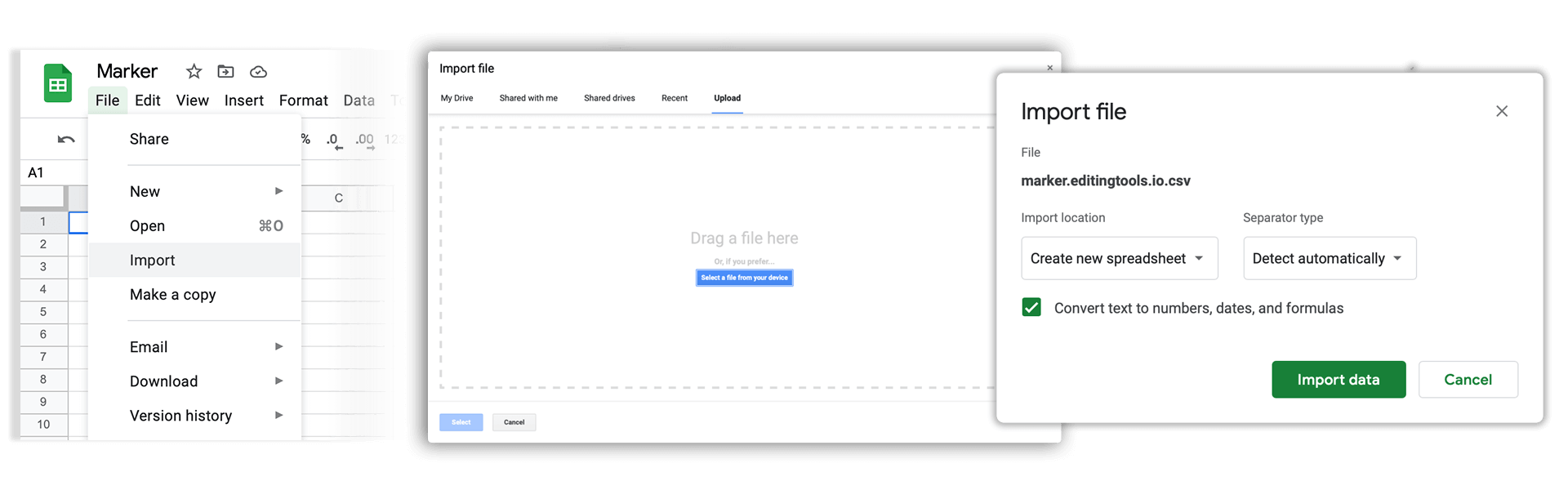
Open Google Sheets and go to "File -> Import". Upload the generated CSV file and press "Import Data" to generate the Sheet with all markers.
🚀 완료
이제 끝났습니다! 이 튜토리얼이 유용했다면 공유하여 저희를 응원해 주세요. 워크플로 개선에 대한 제안이 있다면 알려 주세요!